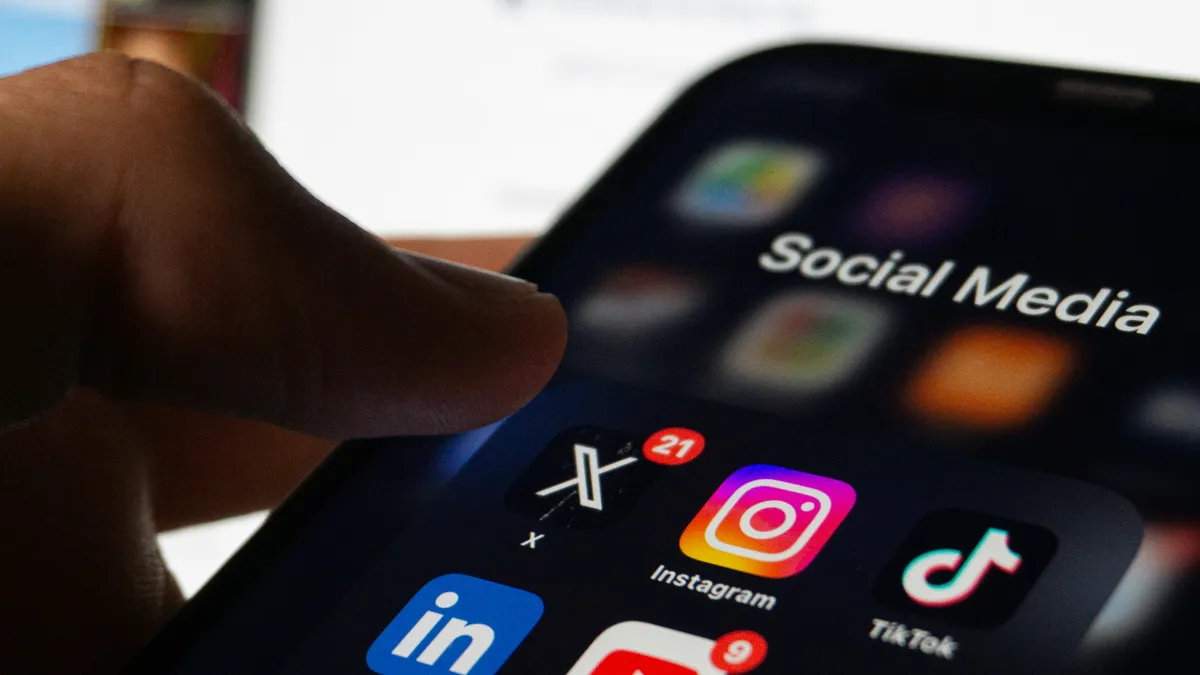
Stop posting pixelated crops. Here's the definitive guide to image dimensions for Instagram, X, LinkedIn, YouTube, and every major platform. Includes a cheat sheet, export tips, and a workflow that saves time.
You spent hours on the graphic. Then the platform ruined it.
You design the perfect image. You write the post. You hit publish.
And LinkedIn crops the head off your subject.
Or X turns your beautiful portrait into a weirdly centered square with black bars on the sides.
Or Instagram compresses your carefully exported PNG into a blurry mess.
Social media image sizing is a constantly moving target. Platforms change their layouts, optimize for new devices, and silently update their aspect ratio preferences without announcing it. What worked last year might look wrong today.
Here's the current state of social media image sizes in 2026, along with a workflow that keeps your posts looking sharp across every platform.
The golden rule: aspect ratio matters more than resolution
In 2026, aspect ratio is the thing to care about.
Resolution determines sharpness. Aspect ratio determines how much space your image takes up on the screen. And on mobile feeds, where the vast majority of content is consumed, screen space is attention.
Vertical images take up more physical space on a phone screen than horizontal ones. A 4:5 portrait image on Instagram fills more of the feed than a 1:1 square. More screen space means more time spent looking at your content. More time means more engagement.
This is why vertical has won. Every major platform now favors or at least supports vertical content. If you're still designing everything in 16:9 landscape, you're giving away attention for free.
The 2026 cheat sheet
Square posts: 1080 by 1080 pixels. 1:1 aspect ratio. The classic format. Safe but takes up less feed space than portrait.
Portrait posts: 1080 by 1350 pixels. 4:5 aspect ratio. This is the winner for feed posts. It takes up the maximum vertical space without getting cropped. If you're only designing one format for Instagram, make it this one.
Stories and Reels: 1080 by 1920 pixels. 9:16 aspect ratio. Full screen vertical. Leave about 250 pixels of safe space at the top and bottom to avoid UI overlap.
Profile picture: 320 by 320 pixels. Displays as a circle, so keep important content centered.
X (Twitter)
In-stream images: 16:9 aspect ratio works high-performing. 1600 by 900 pixels is the standard. X now supports taller vertical crops better than it used to, but 16:9 is still the safest bet for preview cards.
Header image: 1500 by 500 pixels. The header gets cropped differently on mobile and desktop, so keep important content in the center 1500 by 300 area.
Profile picture: 400 by 400 pixels. Displays as a circle.
Post images: 1080 by 1350 pixels. 4:5 aspect ratio. LinkedIn's mobile feed now behaves similarly to Instagram. Portrait posts take up more space and get more engagement.
Article cover images: 1200 by 627 pixels. Roughly 1.91:1. This is the standard link preview size.
Company page banner: 1128 by 191 pixels. Very wide and very short. Keep text minimal and centered.
Profile picture: 400 by 400 pixels.
YouTube
Thumbnails: 1280 by 720 pixels. 16:9 aspect ratio. Do not deviate from this. YouTube will accept other sizes but will crop or letterbox them. The minimum width is 640 pixels.
Shorts: 1080 by 1920 pixels. 9:16 aspect ratio. Same as Instagram Stories and Reels.
Channel banner: 2560 by 1440 pixels. The safe area for all devices is 1546 by 423 pixels in the center. Design for the safe area and let the edges extend for larger screens.
TikTok
Video and images: 1080 by 1920 pixels. 9:16 aspect ratio. TikTok is vertical-first. Anything else looks out of place.
Post images: 1080 by 1080 pixels for square, 1080 by 1350 for portrait. Facebook supports both but square is the safest for consistent display across devices.
Cover photo: 820 by 312 pixels on desktop, 640 by 360 on mobile. Design at 820 by 360 and keep important content in the center 640 by 312 area.
Why you shouldn't memorize these numbers
You have better things to do than remember pixel dimensions for six different platforms.
If you have a high-resolution photo and need it to fit everywhere, use a tool. The Image Resizer has presets for all these platforms built in.
Upload your source image. Click "Instagram Portrait." Download. Click "YouTube Thumbnail." Download. Click "LinkedIn Post." Download.
It handles the resizing, the aspect ratio, and the compression in one click. No manual math. No guessing.
A practical publishing workflow
Use this sequence for every campaign asset:
-
Design one source image at high quality. Start with the largest size you'll need. It's easier to scale down than up.
-
Export platform variants. Create separate files for each platform using the correct aspect ratio and dimensions. Instagram 4:5. LinkedIn 4:5. X 16:9. YouTube 16:9.
-
Check text safety margins. On mobile, UI elements overlap the edges of your image. Make sure text and important visual elements are at least 100 pixels from the edges.
-
Publish natively. Upload the image directly to each platform instead of sharing a link. Most platforms prioritize native media in their algorithms.
-
Save your presets. Once you've figured out the right settings for each platform, save them. The next campaign takes half the time.
Export settings that preserve quality
Use PNG for graphics with text or sharp edges. PNG preserves crisp lines and text. JPEG introduces compression artifacts that make text look fuzzy.
Use JPEG for photography. JPEG handles photographic content better than PNG and produces smaller files. Use a quality setting of 80 to 85 percent for a good balance of quality and file size.
Use WebP when the platform supports it. WebP produces smaller files than JPEG at equivalent quality. Instagram, X, and LinkedIn all accept WebP uploads.
Avoid re-exporting compressed files. Each time you export a JPEG, it loses quality. Always export from your original source file, not from a previously compressed version.
Keep a master source file. Store your original design at full resolution. Generate platform variants from the master, not from other variants.
Common mistakes
Using the wrong aspect ratio. A 16:9 image on Instagram takes up less feed space than a 4:5 image. You're giving away attention.
Over-compressing before upload. Social platforms compress your images anyway. If you compress too aggressively before uploading, the platform's compression makes it worse. Upload the highest quality file the platform accepts.
Cross-posting the same file everywhere. An Instagram portrait image looks wrong on X. A X landscape image looks small on Instagram. Create platform-specific variants.
Ignoring the safe area. Platform UI elements overlap your image. Text near the edges gets covered by buttons, captions, and profile information. Keep important content in the center.
Frequently asked questions
Does image size affect engagement?
Indirectly. A properly sized image looks better, which makes people more likely to stop scrolling and look at it. A cropped or pixelated image looks unprofessional and gets less attention.
Should I use the same image across all platforms?
You can, but you shouldn't. Each platform has different aspect ratio preferences. Create variants optimized for each platform from the same source design.
What file format should I use?
PNG for graphics with text. JPEG for photos. WebP if the platform accepts it and you want smaller file sizes.
How do I prevent Instagram from compressing my images?
You can't prevent compression entirely, but you can minimize its impact. Upload at the exact recommended dimensions. Use sRGB color profile. Keep file size under 4MB. Use high-quality JPEG or PNG.
Do these sizes change often?
Platforms update their layouts periodically. The aspect ratios tend to stay stable even when the recommended pixel dimensions change. Design for the aspect ratio and resize to the current recommended dimensions.
Final note
Social media image sizing is tedious but important. A properly sized image looks professional and gets more attention. A poorly sized one looks amateurish and gets ignored.
If you want to skip the manual resizing, the Image Resizer handles all the major platform presets in one click. Upload, select, download.
Muhammad Salman
UI/UX & Graphic DesignerA talented UI/UX and graphic designer with two years of experience in the industry, having completed multiple projects across a wide range of niches. With an...
Share this article
Discover More
View all articles
Meta Tags That Actually Work (And All the Junk You Can Ignore)
Real talk about meta tags in 2026. Learn the 5 that actually matter, the 50 you can delete, and how to make your links look good when shared.

The Complete Guide to QR Codes in 2026: Generation, Best Practices, and Marketing
QR codes went from dead to essential. Here's how they work, how to generate them for free, and the best practices for printing and marketing that most guides miss.
Why Your Images Look Weird: The Complete Aspect Ratio Guide
Stop stretching and squishing your images. Here's how aspect ratios actually work, where they matter, and a free calculator to get your dimensions right every time.
Use These Related Tools
View all toolsBase64 Image Decoder
Convert Base64 strings to images.
Image Color Picker
Extract colors from images.
Email Signature Generator
Design professional email signatures with 8 templates, brand colors, custom fonts, photo, CTA, disclaimer, vCard export, and live Gmail/Outlook preview. Free, no signup, runs in your browser.
Lorem Ipsum Generator
Generate placeholder text for designs.
Need a tool for this workflow?
Axonix provides 100+ browser-based tools for practical development, design, file, and productivity tasks.
Explore Our Tools