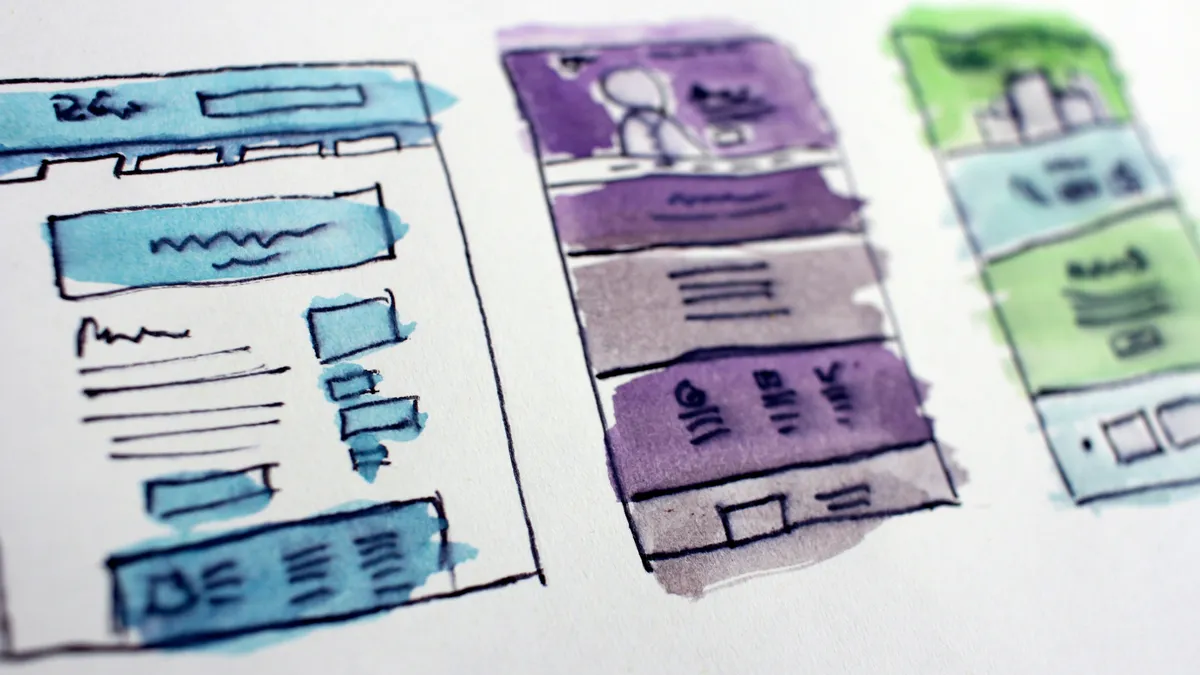
CSS layout has evolved past floats and hacks. Flexbox handles one-dimensional layouts. Grid manages two-dimensional structures. Container queries respond to parent size. Here is how to use each tool correctly and stop fighting with your stylesheets.
CSS Layout Mastery in 2026: From Flexbox to Container Queries
I spent three years of my career fighting with floats. Not because floats were good, but because they were the only tool available for putting things next to each other on a webpage. I wrote clearfix hacks. I calculated percentages in my head. I accepted that certain layouts were simply impossible without JavaScript.
Then Flexbox arrived and half those problems disappeared. Then Grid arrived and the other half disappeared. Then container queries arrived and I stopped thinking about layouts in terms of viewport width entirely.
The tools exist now to build any layout you can imagine without a single hack. The problem is not capability anymore. It is knowing which tool to reach for and when.
This guide covers every major CSS layout system you will use in 2026. I will show you what each one does well, where it falls short, and how to combine them without creating a maintenance nightmare.
The Layout Problem CSS Had to Solve
Web pages started as documents. Documents flow top to bottom. That worked fine when pages were mostly text with occasional images. Then people wanted columns. Then they wanted sidebars. Then they wanted complex dashboards with resizable panels.
CSS was not built for any of that. It was built for documents.
The early solutions were creative in the way that jury-rigged solutions always are. Floats were designed for wrapping text around images. People used them for multi-column layouts and then spent hours debugging why a footer jumped up into the middle of the page. Tables were designed for tabular data. People used them for entire page layouts and then spent hours debugging why their semantic HTML was a mess.
None of this was the fault of the developers using these techniques. The tools did not exist to do what people needed. So they improvised.
That changed starting around 2012 when Flexbox entered the specification. It took a few more years for browser support to stabilize. Grid followed a similar trajectory. Container queries took even longer because they required solving some genuinely hard problems in the rendering pipeline.
Now all three are available in every major browser. The question is no longer whether you can use them. The question is which one you should use for a given situation.
Flexbox: One-Dimensional Layouts Done Right
Flexbox solves one problem. It arranges items along a single axis, either horizontally or vertically, and gives you control over how they distribute space.
That sounds simple. It is simple. And it handles more real-world layouts than people give it credit for.
When to Use Flexbox
Use Flexbox when your items form a line. That line might wrap. It might reverse direction. The items inside it might grow or shrink. But the fundamental structure is one-dimensional.
Navigation bars use Flexbox. You have a row of links. You want them spaced evenly or pushed to one end. Flexbox handles this in three lines.
.nav {
  display: flex;
  justify-content: space-between;
  align-items: center;
}
Button groups use Flexbox. You have several buttons that should sit next to each other with consistent gaps. Flexbox handles this.
.button-group {
  display: flex;
  gap: 0.5rem;
  flex-wrap: wrap;
}
Card footers use Flexbox. You want the action button on the right and maybe a timestamp on the left. Flexbox handles this.
.card-footer {
  display: flex;
  justify-content: space-between;
  align-items: center;
}
Centering a single item uses Flexbox. It also uses Grid. Both work. Flexbox is marginally simpler if you are already thinking in one dimension.
.centered {
  display: flex;
  justify-content: center;
  align-items: center;
}
Flexbox Properties That Actually Matter
You do not need to memorize every Flexbox property. You need six of them.
display: flex turns on the layout system. The container becomes a flex context. Direct children become flex items.
flex-direction sets the axis. row is horizontal, left to right. column is vertical, top to bottom. row-reverse and column-reverse flip the order without changing the HTML.
justify-content controls distribution along the main axis. flex-start packs items to the beginning. center centers them. space-between puts equal gaps between items. space-around puts equal gaps around items. space-evenly distributes everything uniformly.
align-items controls alignment along the cross axis. stretch makes items fill the container. center centers them. flex-start and flex-end push them to the edges.
gap sets the space between items. This replaced the old margin hacks. It works in Flexbox and Grid. Use it everywhere.
flex-wrap controls whether items stay on one line or wrap to the next. nowrap keeps everything on one line, which causes overflow if items are too wide. wrap lets items flow to the next line when they run out of space.
The flex Shorthand
The flex property on flex items confuses people because it takes one, two, or three values and each combination means something different.
.item { flex: 1; }        /* flex-grow: 1, flex-shrink: 1, flex-basis: 0% */
.item { flex: 0 auto; }   /* flex-grow: 0, flex-shrink: 1, flex-basis: auto */
.item { flex: 2 200px; }  /* flex-grow: 2, flex-shrink: 1, flex-basis: 200px */
The shorthand sets three properties at once: flex-grow, flex-shrink, and flex-basis.
flex-grow determines how much extra space an item takes when the container has room. A value of 0 means the item stays at its natural size. A value of 1 means it expands to fill available space. If multiple items have flex-grow: 1, they split the extra space equally.
flex-shrink determines how much an item compresses when the container is too small. A value of 0 means the item never shrinks below its natural size. A value of 1 means it shrinks proportionally with other items.
flex-basis sets the starting size before growth or shrinkage. auto uses the item's content size. 0% means the item starts at zero and grows entirely from the available space. A fixed value like 200px gives the item a concrete starting point.
The most common pattern is flex: 1 on items that should share space equally. This sets grow to 1, shrink to 1, and basis to 0%, which means every item starts at zero and divides the container evenly.
Where Flexbox Falls Short
Flexbox struggles with two-dimensional layouts. If you need precise control over both rows and columns simultaneously, Flexbox becomes a collection of workarounds.
Consider a photo gallery where items span different numbers of rows and columns. You could try to make this work with Flexbox by wrapping items in containers and using percentage widths. You will spend more time fighting the layout than building it.
Consider a dashboard with a sidebar, header, main content area, and footer where the sidebar and main content need to align precisely. Flexbox can approximate this. Grid does it naturally.
Flexbox also struggles when you need items to align to a shared grid across multiple rows. Each flex row is independent. Items in row one have no relationship to items in row two. If you want a card in row two to line up with a card in row one, you need to manage widths manually.
These are not flaws in Flexbox. They are design decisions. Flexbox was built for one-dimensional layouts. It excels at that job. Use it for that job.
Grid: Two-Dimensional Layouts Without the Pain
Grid solves the problem Flexbox does not. It lets you define a two-dimensional structure and place items anywhere within it.
Where Flexbox thinks in lines, Grid thinks in areas. Where Flexbox distributes space along an axis, Grid creates a coordinate system and lets you position things within it.
When to Use Grid
Use Grid when your layout has structure in both directions. Rows and columns. Areas that span multiple cells. Gaps that need to be consistent across the entire layout.
Page-level layouts use Grid. A typical page has a header, sidebar, main content, and footer. Grid defines this structure in a few lines.
.page {
  display: grid;
  grid-template-columns: 250px 1fr;
  grid-template-rows: auto 1fr auto;
  grid-template-areas:
    "header header"
    "sidebar main"
    "footer footer";
  min-height: 100vh;
}

.header { grid-area: header; }
.sidebar { grid-area: sidebar; }
.main { grid-area: main; }
.footer { grid-area: footer; }
This is readable. It describes the layout visually in the CSS. If you need to move the sidebar to the right, you change one line in the template.
Card grids use Grid. You want three columns on desktop, two on tablet, one on mobile. Grid handles this without media queries if you use auto-fill.
.card-grid {
  display: grid;
  grid-template-columns: repeat(auto-fill, minmax(300px, 1fr));
  gap: 1.5rem;
}
This single declaration creates as many columns as will fit in the container, each at least 300px wide, with remaining space distributed equally. No media queries. No JavaScript. It just works.
Dashboards use Grid. You have widgets of different sizes. Some span two columns. Some span two rows. Grid handles this with grid-column and grid-row.
.widget-large {
  grid-column: span 2;
  grid-row: span 2;
}
Forms use Grid. You want labels and inputs aligned in columns. Grid handles this with grid-template-columns on the form container.
.form-grid {
  display: grid;
  grid-template-columns: 150px 1fr;
  gap: 1rem;
  align-items: center;
}
Grid Properties That Actually Matter
You need fewer Grid properties than you might expect. The system is powerful, but the common patterns are straightforward.
display: grid turns on the layout system. The container becomes a grid context. Direct children become grid items.
grid-template-columns defines the column structure. You can use fixed values like 200px, flexible values like 1fr, or functions like repeat() and minmax().
grid-template-rows defines the row structure. Same syntax as columns. You can also use auto to let content determine the size.
grid-template-areas gives names to regions of the grid. This is the most readable way to define complex layouts. Each string is a row. Each word within a string is a column cell.
gap sets the space between grid cells. Works the same as in Flexbox. Use it.
grid-column and grid-row control where an item sits and how many cells it spans. grid-column: 1 / 3 places the item starting at column line 1 and ending at column line 3, spanning two columns. grid-column: span 2 makes the item span two columns from its current position.
grid-area assigns an item to a named area defined in grid-template-areas. This connects the item to a specific region of the layout.
The fr Unit
The fr unit is Grid's most important contribution to CSS. It is a fraction of the available free space.
If you write grid-template-columns: 1fr 2fr, the container divides into three parts. The first column gets one part. The second column gets two parts. The second column is twice as wide as the first.
If you write grid-template-columns: 200px 1fr 1fr, the first column is fixed at 200px. The remaining space divides equally between the second and third columns.
The fr unit works with minmax() to create responsive columns without media queries.
grid-template-columns: repeat(auto-fill, minmax(min(100%, 300px), 1fr));
This creates columns that are at least 300px wide when space allows, but shrink to fit on smaller screens. The min(100%, 300px) prevents the minimum from exceeding the container width on very small screens.
Where Grid Falls Short
Grid is not ideal for content-driven layouts where the number of items changes dynamically and you want them to flow naturally. Flexbox handles flowing content better because it does not impose a rigid structure.
Consider a tag cloud or a list of badges where items should wrap naturally based on their content width. Flexbox with flex-wrap: wrap handles this cleanly. Grid would require you to either define a fixed number of columns or use auto-fill, which works but gives you less control over how items wrap.
Grid also struggles with baseline alignment across items with different content heights. Flexbox aligns items along a single axis. Grid aligns them within cells. If you need text baselines to line up across items with varying amounts of content, Flexbox is the better choice.
Grid can feel heavy for simple layouts. If you just need to center something or put two items side by side, Flexbox is simpler. Grid brings power. Power brings complexity. Use it when you need the power.
Container Queries: Responsive to the Parent, Not the Viewport
Container queries solve a problem that media queries cannot. They let components respond to the size of their parent container instead of the size of the viewport.
This matters because components live inside other components. A card might appear in a three-column grid on desktop and a single-column list on mobile. With media queries, you need to know the viewport width and guess what the card's container size will be at that width. With container queries, the card responds to its actual container size regardless of the viewport.
When to Use Container Queries
Use container queries for reusable components that appear in different contexts. Cards, widgets, navigation items, form elements. Any component that might be placed in a wide container on one page and a narrow container on another.
Consider a product card. In a three-column grid, it has room to show an image, title, description, price, and action button side by side. In a single-column layout, it should stack vertically. With container queries, the card handles both scenarios from a single set of styles.
.product-card {
  container-type: inline-size;
  container-name: card;
}

@container card (min-width: 400px) {
  .product-card {
    display: grid;
    grid-template-columns: 200px 1fr;
    gap: 1.5rem;
  }
}

@container card (max-width: 399px) {
  .product-card {
    display: flex;
    flex-direction: column;
  }
}
The card does not care about the viewport. It cares about its container. If the container is wide enough, it uses a side-by-side layout. If the container is narrow, it stacks. This works whether the card is in a sidebar, a main content area, or a modal dialog.
How Container Queries Work
Container queries require two steps. First, you establish a containment context on the parent element. Second, you write queries that target that context.
.sidebar {
  container-type: inline-size;
  container-name: sidebar;
}

@container sidebar (min-width: 300px) {
  .widget { /* styles when sidebar is at least 300px wide */ }
}
container-type tells the browser to track the size of this element. inline-size tracks the width in the inline direction, which is horizontal for left-to-right languages. normal turns off containment.
container-name gives the context a name. This lets you target specific containers when you have multiple containment contexts on the page. You can omit the name and use an unnamed query, but naming makes the code clearer.
@container works like @media but targets the container instead of the viewport. You can use min-width, max-width, min-height, max-height, and logical properties like min-inline-size.
Container Units
Container queries introduce new units that scale relative to the container size instead of the viewport.
cqw is one percent of the container width. cqh is one percent of the container height. cqi is one percent of the container inline size. cqb is one percent of the container block size. cqmin and cqmax are the smaller and larger of the inline and block sizes.
These units let you size elements relative to their container without JavaScript. A heading inside a widget can scale based on the widget width. A padding value can adjust based on the container height.
.widget h2 {
  font-size: clamp(1rem, 4cqi, 2rem);
}
This heading scales between 1rem and 2rem based on four percent of the container inline size. On a wide container, the heading grows. On a narrow container, it shrinks. The clamp() function keeps it within bounds.
Where Container Queries Fall Short
Container queries do not replace media queries. They complement them. Media queries still handle viewport-level concerns like overall page layout, navigation patterns, and touch target sizing. Container queries handle component-level concerns.
Container queries also require a containment context. You cannot query the size of an arbitrary ancestor. You need to explicitly set container-type on the element you want to track. This is a minor inconvenience, but it means you need to plan your component hierarchy with containment in mind.
Browser support for container queries is solid in 2026. Every major browser shipped support in 2023 and 2024. If you need to support older browsers, you will need a fallback. But for most projects in 2026, container queries are safe to use.
Combining Flexbox, Grid, and Container Queries
The real power comes from using these systems together. They are not competitors. They are tools for different jobs.
The Page Layout Pattern
Start with Grid for the page structure. Define the major regions.
.page {
  display: grid;
  grid-template-columns: 1fr;
  grid-template-rows: auto 1fr auto;
  grid-template-areas:
    "header"
    "main"
    "footer";
  min-height: 100vh;
}

@media (min-width: 768px) {
  .page {
    grid-template-columns: 250px 1fr;
    grid-template-areas:
      "header header"
      "sidebar main"
      "footer footer";
  }
}
Then use Flexbox inside each region for component layout.
.header {
  grid-area: header;
  display: flex;
  justify-content: space-between;
  align-items: center;
  padding: 1rem 2rem;
}

.nav-links {
  display: flex;
  gap: 1rem;
  list-style: none;
}
Then use container queries for components that appear in multiple contexts.
.content-card {
  container-type: inline-size;
  display: flex;
  flex-direction: column;
  gap: 1rem;
  padding: 1.5rem;
}

@container (min-width: 500px) {
  .content-card {
    flex-direction: row;
    align-items: flex-start;
  }
}
This pattern gives you a clean separation of concerns. Grid handles the macro layout. Flexbox handles the micro layout. Container queries handle responsive components.
The Dashboard Pattern
Dashboards combine all three systems heavily. The page uses Grid for the overall structure. Each widget uses Flexbox for internal layout. The widgets use container queries to adapt to their assigned grid cell size.
.dashboard {
  display: grid;
  grid-template-columns: repeat(auto-fill, minmax(300px, 1fr));
  gap: 1.5rem;
  padding: 1.5rem;
}

.widget {
  container-type: inline-size;
  display: flex;
  flex-direction: column;
  gap: 1rem;
  padding: 1.5rem;
  border: 1px solid var(--border);
  border-radius: 0.5rem;
}

.widget-header {
  display: flex;
  justify-content: space-between;
  align-items: center;
}

.widget-content {
  flex: 1;
}

@container (min-width: 400px) {
  .widget-header {
    flex-direction: row;
  }
}
The Card Grid Pattern
Card grids are where Grid and Flexbox work together most naturally. Grid handles the column structure. Flexbox handles the content inside each card.
.card-grid {
  display: grid;
  grid-template-columns: repeat(auto-fill, minmax(280px, 1fr));
  gap: 1.5rem;
}

.card {
  display: flex;
  flex-direction: column;
  border: 1px solid var(--border);
  border-radius: 0.5rem;
  overflow: hidden;
}

.card-image {
  aspect-ratio: 16 / 9;
  object-fit: cover;
}

.card-body {
  display: flex;
  flex-direction: column;
  gap: 0.75rem;
  padding: 1rem;
  flex: 1;
}

.card-footer {
  display: flex;
  justify-content: space-between;
  align-items: center;
  padding: 0.75rem 1rem;
  border-top: 1px solid var(--border);
}
The card uses flex: 1 on the body to push the footer to the bottom. This ensures all cards in a row have aligned footers even when the content length varies. Grid ensures the cards themselves are the same width.
Common Layout Problems and Their Solutions
Equal-Height Columns
Grid handles this automatically. Items in the same row stretch to match the tallest item by default because align-items defaults to stretch.
Flexbox needs align-items: stretch explicitly if it was overridden. But it works the same way.
If you need equal-height columns with varying content and a shared background, Grid is the cleaner choice. The grid cell provides the background, not the item, so the background extends to the full row height.
Sticky Sidebars
A sidebar that stays visible while the main content scrolls requires a combination of Grid and position: sticky.
.layout {
  display: grid;
  grid-template-columns: 250px 1fr;
  gap: 2rem;
}

.sidebar {
  position: sticky;
  top: 1rem;
  align-self: start;
}
The align-self: start prevents the sidebar from stretching to the full height of the grid row, which would make position: sticky ineffective. The sidebar needs to be shorter than its container to have room to stick.
Holy Grail Layout
Header, footer, sidebar, main content, and a secondary sidebar. The classic web layout problem.
.holy-grail {
  display: grid;
  grid-template-columns: 200px 1fr 200px;
  grid-template-rows: auto 1fr auto;
  grid-template-areas:
    "header header header"
    "left main right"
    "footer footer footer";
  min-height: 100vh;
}

.header { grid-area: header; }
.left { grid-area: left; }
.main { grid-area: main; }
.right { grid-area: right; }
.footer { grid-area: footer; }
This takes seven lines of CSS. People used to solve this with nested tables, float clearfixes, and JavaScript. Grid makes it trivial.
Responsive Navigation
A navigation bar that collapses to a hamburger menu on small screens. This is a viewport-level concern, so media queries are the right tool.
.nav {
  display: flex;
  justify-content: space-between;
  align-items: center;
}

.nav-links {
  display: flex;
  gap: 1.5rem;
  list-style: none;
}

@media (max-width: 767px) {
  .nav-links {
    display: none;
  }

  .nav-links.open {
    display: flex;
    flex-direction: column;
    position: absolute;
    top: 100%;
    left: 0;
    right: 0;
    background: var(--bg);
    padding: 1rem;
    box-shadow: 0 4px 6px rgba(0, 0, 0, 0.1);
  }
}
The navigation uses Flexbox for the horizontal layout. The media query handles the collapse behavior. JavaScript toggles the open class. Container queries would not help here because the collapse depends on the viewport, not the container.
Performance Considerations
Layout systems have performance implications. Understanding them helps you avoid problems before they appear.
Grid and Flexbox both use the same layout algorithm under the hood. The browser calculates the size and position of each item during the layout phase of the rendering pipeline. This is fast for typical page sizes. It can slow down if you have thousands of items in a single grid or flex container.
If you have a long list of items, do not put them all in a single Grid or Flexbox container. Use virtualization. Render only the items visible on screen. This keeps the layout calculation fast regardless of the total item count.
Container queries add a small overhead because the browser needs to track container sizes and re-evaluate queries when containers resize. This overhead is negligible for typical component counts. It becomes noticeable if you have hundreds of container query contexts on a single page.
The content-visibility CSS property can help with long pages. It tells the browser to skip rendering content that is not visible.
.off-screen-section {
  content-visibility: auto;
  contain-intrinsic-size: 0 500px;
}
This defers layout and paint for sections that are below the fold. The contain-intrinsic-size gives the browser an estimate of the section size so it can calculate the scroll bar correctly.
Testing Your Layouts
Layout bugs are visual bugs. They do not throw errors. They do not fail tests. They just look wrong.
Test your layouts at multiple viewport widths. Use browser dev tools to simulate different screen sizes. Test on actual devices when possible because browser simulation does not capture everything.
Test with real content, not placeholder text. Placeholder text is uniform. Real content varies in length. A layout that works with "Lorem ipsum" might break with a three-word heading or a paragraph that is twice as long as expected.
Test with extreme content. Very long words. Very short words. Images that fail to load. Empty states. Error states. Loading states. These edge cases reveal layout assumptions you did not know you made.
Use the browser's element inspector to visualize your layout structure. Grid overlay tools show you the grid lines and cell boundaries. Flexbox visualization shows you the flex container and item boundaries. These tools make it obvious when your mental model of the layout does not match the actual layout.
The Decision Framework
When you face a layout problem, run through these questions in order.
Is the layout one-dimensional? Use Flexbox. Items in a row or a column. Navigation bars, button groups, card footers, centered content.
Is the layout two-dimensional? Use Grid. Page structures, card grids, dashboards, forms with aligned labels and inputs.
Does the component appear in containers of different sizes? Use container queries. Cards, widgets, reusable components that need to adapt to their context.
Does the layout depend on viewport width? Use media queries. Page-level responsive behavior, navigation collapse, touch target sizing.
Can multiple systems work? Pick the simplest one that handles the job. If Flexbox works, use Flexbox. If you need Grid, use Grid. Do not reach for Grid to center a div. Do not reach for Flexbox to build a dashboard.
The tools are mature. The browser support is solid. The patterns are established. You do not need hacks anymore. You need to know which tool to use and when.

Muhammad Salman
UI/UX & Graphic DesignerA talented UI/UX and graphic designer with two years of experience in the industry, having completed multiple projects across a wide range of niches. With an...
Share this article
Discover More
View all articles
CSS Grid vs Flexbox: A Love Letter to Both (But Mostly Grid)
Real talk about CSS layout from a developer who's made every mistake. Learn when to Grid, when to Flex, and why you're probably using the wrong one.

Steal Like an Artist: Extracting Color Palettes from Movies and Photos
Wes Anderson didn't invent pastel pink, but he owns it. Here's how to pull color palettes from cinema, photography, and any image for your web projects.

Is Glassmorphism Still Cool? The Complete CSS Guide for 2026
Apple uses it. Microsoft uses it. But Twitter called it dead. Let's settle this with actual code, real examples, and a look at why most glass effects fail.
Use These Related Tools
View all toolsFlexbox Playground
Visual CSS Flexbox builder to master responsive layouts effortlessly.
Grid Playground
Visual CSS Grid builder to prototype complex 2D layouts in seconds.
CSS Gradient Generator
Create beautiful CSS gradients.
CSS Keyframes
Visually build complex CSS animations with real-time timeline preview.
Need a tool for this workflow?
Axonix provides 100+ browser-based tools for practical development, design, file, and productivity tasks.
Explore Our Tools