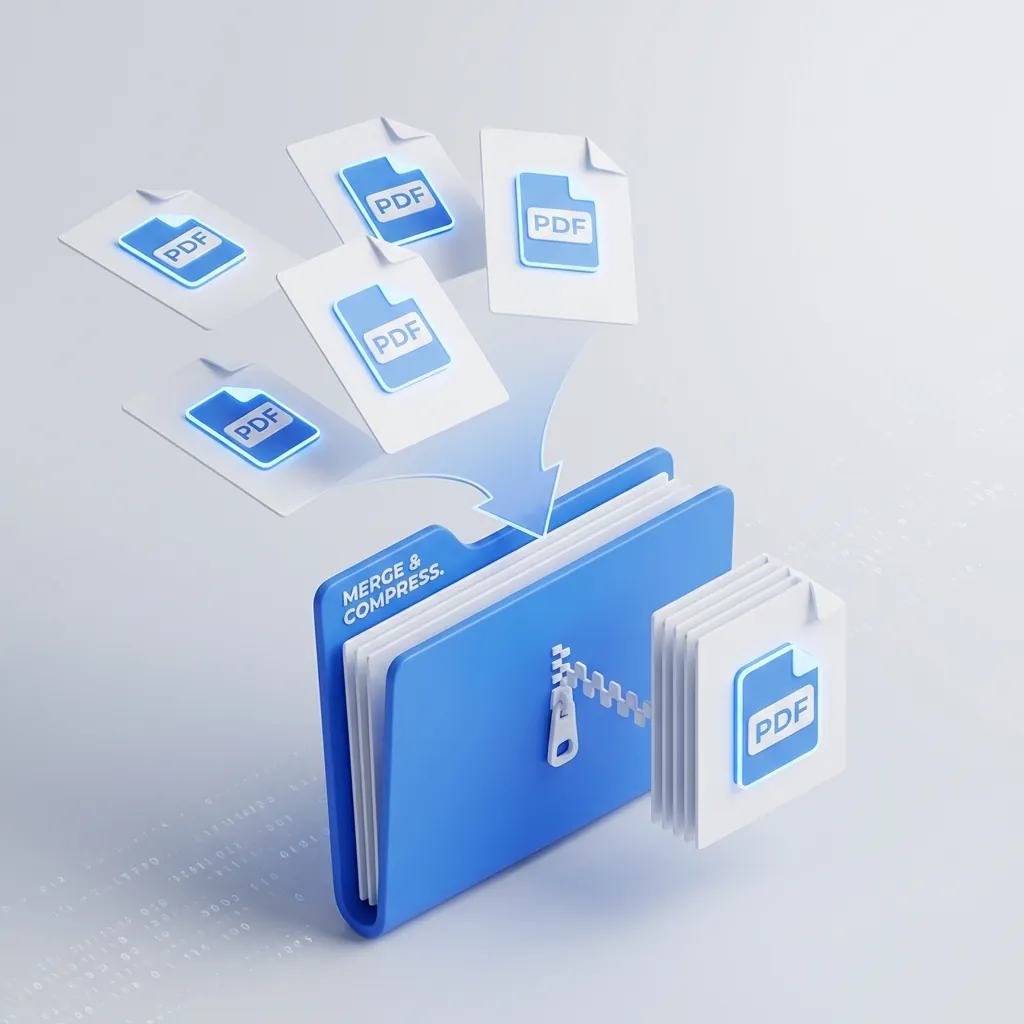
Stop emailing ten separate attachments. Learn the fast, free way to combine and shrink PDFs in your browser without paying for expensive software.
The rental application that almost broke me
Last year I was applying for an apartment in a competitive market. The landlord wanted everything in one email: ID, proof of income, bank statements, and the application form. Four separate PDF files totaling thirty-four megabytes.
Gmail's attachment limit is twenty-five megabytes.
I almost paid fifteen dollars a month for Adobe Acrobat just to solve this one problem. Instead, I used browser-based tools to merge and compress the files locally. The thirty-four megabyte package became two megabytes. A ninety-four percent reduction with no visible quality loss.
The whole process took about thirty seconds.
Why multiple attachments look unprofessional
Emails with excessive attachments come across as disorganized. When a recipient sees six separate files named application_form.pdf, bank_statement_jan.pdf, bank_statement_feb.pdf, drivers_license.pdf, pay_stub_1.pdf, and pay_stub_2.pdf, their immediate impression is that the sender didn't take the time to organize their materials.
Compare that to a single file named john-smith-application-package.pdf with everything combined in the right order. First impressions matter, especially for job applications, rental applications, and client proposals.
A merged document signals that you've put thought into what the recipient needs and made their job easier. That's a small thing, but small things add up.
The upload problem with free PDF tools
Here's something most people don't realize: when you upload a PDF to a free online tool, you're sending your personal documents to a server you don't control.
Bank statements. Tax returns. Medical records. Legal contracts. These sites could store your documents indefinitely, analyze them for data mining, or suffer a breach that exposes your information. Some privacy policies include language about using uploaded content for "service improvement," which is a polite way of saying your documents might end up in a training dataset.
I designed both the PDF Merger and PDF Compressor to handle core processing client-side. The merge and compression happen in your browser using libraries like PDF-lib and browser-based optimization algorithms. No server upload is required for standard operations.
How PDF compression actually works
PDF compression isn't just about making files smaller. It's about intelligent optimization that reduces file size without sacrificing readability.
Image downsampling. Scanned documents often have six hundred DPI resolution, which is meant for printing. For screen viewing, one hundred fifty DPI is plenty. The compressor reduces image resolution while maintaining readability. This is usually the biggest source of file size reduction.
Stream compression. PDFs contain compressed data streams. Re-encoding these with more efficient algorithms reduces size without affecting content.
Object deduplication. Repeated elements like fonts and colors can be stored once and referenced multiple times. Poorly made PDFs often duplicate this data, adding unnecessary bulk.
Metadata stripping. Removes unnecessary metadata that adds bloat: previous versions, editing history, application information, and embedded thumbnails.
The combination of these techniques can reduce a file by seventy to ninety percent without any visible quality loss on screen.
Step by step: my actual workflow
Here's exactly what I do when I need to send a PDF package:
Step one: organize the order. The PDF Merger lets you drag files to reorder them. I always put the most important document first, usually the actual application form or cover letter, followed by supporting documents in logical order.
Step two: merge into one file. Click merge. Takes about two seconds for most document sets.
Step three: check the file size. If it's over ten megabytes, I compress it. Under ten megabytes is usually fine for email. Under five is ideal.
Step four: compress if needed. The PDF Compressor reduces the file size. I aim for under five megabytes when possible.
Step five: rename meaningfully. application-package-john-smith-2026.pdf is better than merged-document.pdf. The recipient should know what the file is before opening it.
Common scenarios this solves
Job applications. Resume, cover letter, portfolio samples, and references, all in one clean file. Recruiters appreciate not having to download and open five separate attachments.
Client proposals. Proposal document, terms, case studies, and pricing, combined for easy review. A single file looks more professional than a scattered set of attachments.
Legal documents. Contracts with signatures, addendums and supporting exhibits. Legal teams often require a single combined document for filing.
School applications. Transcripts, test scores, essays, and recommendation letters. Application portals usually want everything in one file.
Insurance claims. Photos, receipts, forms, and correspondence. Insurance companies process claims faster when everything is in one document.
When to split instead of merge
Sometimes the opposite problem comes up: you have one large PDF and need to send specific pages to different people. The PDF Splitter lets you extract specific pages or ranges from a larger document.
If you merged a client package but only need to send the budget section to the finance team, split out those pages instead of sending the entire document. It's faster for the recipient and keeps information compartmentalized.
Frequently asked questions
Does compressing a PDF reduce quality?
The PDF Compressor reduces file size by optimizing images and removing unnecessary data. Text quality is preserved. Image quality is reduced slightly but usually not noticeably at reasonable compression settings. For scan-heavy documents, use a lighter compression setting.
Can I merge and compress on my phone?
Yes. Both tools work on mobile browsers. The process is the same: select files, merge, compress, download. No app installation required.
Is there a file size limit?
Browser-based tools are limited by your device's available memory. In practice, you can merge and compress files up to several hundred megabytes. If you're working with very large scanned documents, split them into smaller groups first.
Can I compress a PDF that's already been compressed?
You can, but the savings will be smaller. Each compression pass reduces the low-hanging fruit. The biggest reduction comes from the first compression of an uncompressed or lightly compressed file.
Final note
The difference between sending scattered attachments and a unified PDF package is about thirty seconds of effort. That thirty seconds signals organization and attention to detail.
Merge your files with PDF Merger. Compress them with PDF Compressor. Both run locally in your browser. Both are free.
Why the order of operations matters
Merge first, then compress. Not the other way around.
If you compress individual files before merging, you lose quality that cannot be recovered during the merge step. And repeated compress-merge-compress cycles degrade the output with each pass. The artifacts compound.
The correct sequence is: organize your source files, merge them in the right order, check the output for correctness, compress once at the end, and verify the compressed version looks right. One compression pass at the end gives you the smallest file with the high-performing quality.
This matters most for scanned documents and image-heavy PDFs. Text-only PDFs compress well regardless of when you do it, but image-heavy files are sensitive to multiple compression passes.
Handling password-protected PDFs
If one of your source files is password-protected, the merge will fail. Most browser-based tools cannot open encrypted PDFs without the password.
Here is what to do:
- Open the protected file in a PDF viewer and enter the password.
- Print the document to a new PDF. Most viewers let you print to PDF, which creates an unencrypted copy.
- Use the unencrypted copy in your merge.
Some files also have restricted permissions that prevent merging even without a password. If a file opens fine but won't merge, check the document properties for permission restrictions.
This is common with legally sensitive documents where the sender wants to prevent modification. Respect those restrictions when possible.
Troubleshooting failed merges
When a merge fails, the cause is usually one of these:
Corrupted source file. Open each file individually to confirm it loads correctly. If one file won't open, it won't merge either. Re-download or re-export the problematic file.
Memory limits. Merging many large scanned PDFs can exceed your device's available memory. Close other browser tabs and applications, then try again. If it still fails, merge in smaller batches.
Mixed page sizes. Some PDFs contain pages with unusual dimensions. This can cause memory spikes during the merge. Split the file into smaller sections, merge the normal-sized pages first, then add the unusual pages separately.
Browser compatibility. If the merge fails in one browser, try another. Chrome, Firefox, and Safari all handle PDF operations differently, and some edge cases work better in specific browsers.
Why the order of operations matters
Merge first, then compress. Not the other way around.
If you compress individual files before merging, you lose quality that cannot be recovered during the merge step. And repeated compress-merge-compress cycles degrade the output with each pass. The artifacts compound.
The correct sequence is: organize your source files, merge them in the right order, check the output for correctness, compress once at the end, and verify the compressed version looks right. One compression pass at the end gives you the smallest file with the high-performing quality.
This matters most for scanned documents and image-heavy PDFs. Text-only PDFs compress well regardless of when you do it, but image-heavy files are sensitive to multiple compression passes.
Handling password-protected PDFs
If one of your source files is password-protected, the merge will fail. Most browser-based tools cannot open encrypted PDFs without the password.
Here is what to do:
- Open the protected file in a PDF viewer and enter the password.
- Print the document to a new PDF. Most viewers let you print to PDF, which creates an unencrypted copy.
- Use the unencrypted copy in your merge.
Some files also have restricted permissions that prevent merging even without a password. If a file opens fine but won't merge, check the document properties for permission restrictions.
This is common with legally sensitive documents where the sender wants to prevent modification. Respect those restrictions when possible.
Troubleshooting failed merges
When a merge fails, the cause is usually one of these:
Corrupted source file. Open each file individually to confirm it loads correctly. If one file won't open, it won't merge either. Re-download or re-export the problematic file.
Memory limits. Merging many large scanned PDFs can exceed your device's available memory. Close other browser tabs and applications, then try again. If it still fails, merge in smaller batches.
Mixed page sizes. Some PDFs contain pages with unusual dimensions. This can cause memory spikes during the merge. Split the file into smaller sections, merge the normal-sized pages first, then add the unusual pages separately.
Browser compatibility. If the merge fails in one browser, try another. Chrome, Firefox, and Safari all handle PDF operations differently, and some edge cases work better in specific browsers.

Muhammad Haroon
Content StrategistA passionate Senior Software Engineer with extensive experience in building enterprise-grade applications using modern technologies. His expertise spans across...
Share this article
Discover More
View all articles
How to Merge PDFs Without Adobe: Free, Fast, and In-Browser
Skip expensive subscriptions. Combine PDFs in your browser with drag and drop, Core processing runs locally, and no software installation.

Best Free PDF Merger Tools in 2026 (No Signup, No Uploads)
A comprehensive comparison of free PDF merger tools in 2026. Learn what to look for, why browser-based tools process files locally, and how to merge PDFs without uploading them to third-party servers.

The Browser-First PDF Workflow: Merge, Split, and Compress Without Uploading Anything
A practical workflow for merging, splitting, and compressing PDFs directly in your browser. No desktop software, no uploads.
Use These Related Tools
View all toolsPDF Compressor
Reduce PDF file size while maintaining quality. Free and secure.
PDF Merger
Combine multiple PDF files into one. Fast, secure, and free.
AI Text Summarizer
Advanced AI-powered text summarization using browser-native machine learning. Unlimited and completely free.
AI Background Remover
Automatically remove image backgrounds in seconds. Free, fast, and runs in your browser.
Need a tool for this workflow?
Axonix provides 100+ browser-based tools for practical development, design, file, and productivity tasks.
Explore Our Tools