
Skip expensive subscriptions. Combine PDFs in your browser with drag and drop, Core processing runs locally, and no software installation.
You don't need a subscription to merge PDFs
Adobe Acrobat is a powerful tool. It can edit PDFs, create forms, add signatures, redact sensitive information, and do just about anything you'd want to do with a document.
But many people only need one feature: merging a few files together. Paying fifteen dollars a month for that single task doesn't make sense.
The alternative is straightforward. Use a browser-based tool like PDF Merger that runs locally on your device. No installation. No subscription. No uploading your files to a server.
For individuals, students, and small teams, this covers the full requirement: combine files in order, export one clean document, then share it.
The fastest way to merge PDFs without Adobe
Open PDF Merger in your browser. Drag your PDF files onto the page or use the file picker to select them. Reorder them by dragging into the correct sequence. Click merge. Download the result.
That's it. No signup. No software install. No waiting for files to upload and download.
For high-performing results, name your files clearly before uploading. 01-cover.pdf, 02-contract.pdf, 03-appendix.pdf. Numbered filenames make ordering obvious and reduce mistakes.
When this approach works well
People typically merge PDFs in these scenarios:
Job applications. Combining a resume, cover letter, and portfolio samples into a single file. Most application portals ask for one document. Merging is the fastest way to deliver everything together.
Financial records. Joining invoices and receipts for accounting. At the end of each month, merge all your receipts into a single PDF for your finance team or tax preparer.
Legal documents. Merging appendices, exhibits, and supporting documents into one submission packet. Court filings and legal submissions often require a single combined document.
University applications. Combining transcripts, recommendation letters, personal statements, and supplementary materials. Application portals usually want everything in one file.
Client proposals. Building a professional package with a cover page, executive summary, proposal body, budget, and timeline. One document looks more polished than five separate files.
If your use case is one of these, a browser workflow is usually enough. You don't need the full Adobe suite.
When Adobe still makes sense
There are cases where a desktop PDF suite is worth the cost:
You edit complex forms daily. You need to add or modify form fields. You do advanced annotations, comments and redaction. Your workflow is deeply tied to Adobe's ecosystem and integrations.
If you only need to combine documents, a free in-browser tool is faster and lighter.
The rule of thumb: use browser tools for simple merge, split, and compress workflows. Use desktop suites for complex document editing pipelines.
Making the file smaller after merging
Merged files can be large, especially if they contain scanned pages or high-resolution images. If you plan to email the result or upload it to a portal with size limits, compress it first.
Run the merged file through PDF Compressor to reduce the file size. The compressor optimizes images and removes unnecessary data while preserving text quality.
If the file is still too large after compression, split it using PDF Splitter and merge in smaller batches. Sometimes the issue is one particularly heavy scanned page. Splitting it out and compressing it separately can solve the problem.
You can also reduce file size by removing unnecessary scanned pages, exporting source documents at moderate resolution instead of maximum, and avoiding repeated re-export cycles that bloat metadata.
Quality checks before sending
Before you email or upload the merged file, take two minutes to verify it:
Open the file and flip through every page. Verify the page order from start to finish. Confirm all signatures and important pages are present. Check that text is readable at one hundred percent zoom. Open the file in a second PDF viewer if possible, since different viewers can render the same file differently. Ensure the final file size meets any portal upload limits.
This two-minute check prevents failed submissions and back-and-forth revisions. It's faster to catch a mistake before sending than to explain it after.
Compliance and file handling
If your documents contain personal or business-sensitive information, prefer workflows where files are processed locally in the browser. When you use a server-based tool, your files travel over the internet and are stored on someone else's computer, at least temporarily.
Browser-based tools process your files in the browser — they are not uploaded, stored, or transmitted. This is easier to explain in internal compliance reviews and reduces the risk of accidental data exposure.
For teams, document your merge process once and reuse it across onboarding and finance operations. A consistent process means consistent results.
Frequently asked questions
Is a browser-based PDF merger as good as Adobe?
For merging, yes. The output quality is identical. The difference is that Adobe offers many more features beyond merging. If you only need to combine files, a browser tool is faster and free.
Can I merge PDFs on my phone?
Yes. Browser-based tools work on mobile browsers. The process is the same: select files, reorder, merge, download. No app installation required.
Are there file size limits?
Browser-based tools are limited by your device's available memory, not by arbitrary server limits. In practice, you can merge files up to several hundred megabytes. If you're working with very large files, split them into smaller groups first.
Does merging reduce quality?
No. Merging combines existing PDF files without re-encoding or recompressing their content. The output quality matches the input quality. If you need to reduce file size, compress after merging.
Can I merge password-protected PDFs?
Most tools cannot merge password-protected PDFs unless you provide the password first. If a file won't merge, check if it's encrypted and remove the password protection before merging.
Final note
You can merge PDFs in under a minute without Adobe. The key is choosing a tool that runs locally so your files are processed locally for core operations and the process stays fast.
Start here: Merge PDFs for free.
Common mistakes when merging PDFs
After helping hundreds of people with PDF merges, here are the errors that come up most:
Merging files in the wrong order. This is the most common issue. You merge five files and the cover page ends up at the bottom. Fix it by naming files with sequence numbers before merging: 01-cover.pdf, 02-proposal.pdf, 03-contract.pdf. The numbers make the order obvious and prevent mistakes.
Including outdated versions. You have proposal-v1.pdf and proposal-v2.pdf in the same folder. Both end up in the merged document. Before merging, delete or archive old versions. Keep only the current files in your working folder.
Ignoring file sizes. A single scanned page can be five to ten megabytes. Merge ten of them and you have a file too large to email. Always check the combined file size after merging. If it exceeds ten megabytes, compress it with PDF Compressor before sending.
Forgetting to verify the output. Open the merged file and flip through every page. Check the order, verify that no pages are missing, and confirm that text is readable. A two-minute check prevents sending a broken document to a client or colleague.
PDF merging on mobile devices
Browser-based PDF tools work on phones and tablets, but mobile devices have tighter memory limits. If a merge fails on your phone, try these steps:
Close other apps to free up memory. Merge fewer files at a time. Use Wi-Fi instead of cellular data for the initial page load. If the merge still fails, switch to a desktop browser where memory is more generous.
Modern mobile browsers have improved significantly. Safari on iOS 17 and Chrome on Android handle most PDF operations reliably. But for large files with scanned pages, desktop remains more dependable.
When you need more than merging
Merging is just one part of PDF management. Here are the related tasks that come up frequently:
Splitting a large document. If you need to send specific pages from a larger PDF, use PDF Splitter to extract just those pages. This is faster than merging everything and then telling the recipient which pages to look at.
Compressing for email. Most email providers cap attachments at twenty-five megabytes. If your merged file exceeds that, compress it to get under the limit. The PDF Compressor reduces file size while preserving text quality.
Reordering pages. If pages are in the wrong order after merging, split the file into individual pages, reorder them, and merge again. Or use a tool that lets you drag to reorder before merging.
Adding a cover page. Create a simple cover page in any document editor, export it as PDF, and merge it as the first file. The cover page gives context and makes the document look professional.

Muhammad Haroon
Content StrategistA passionate Senior Software Engineer with extensive experience in building enterprise-grade applications using modern technologies. His expertise spans across...
Share this article
Discover More
View all articles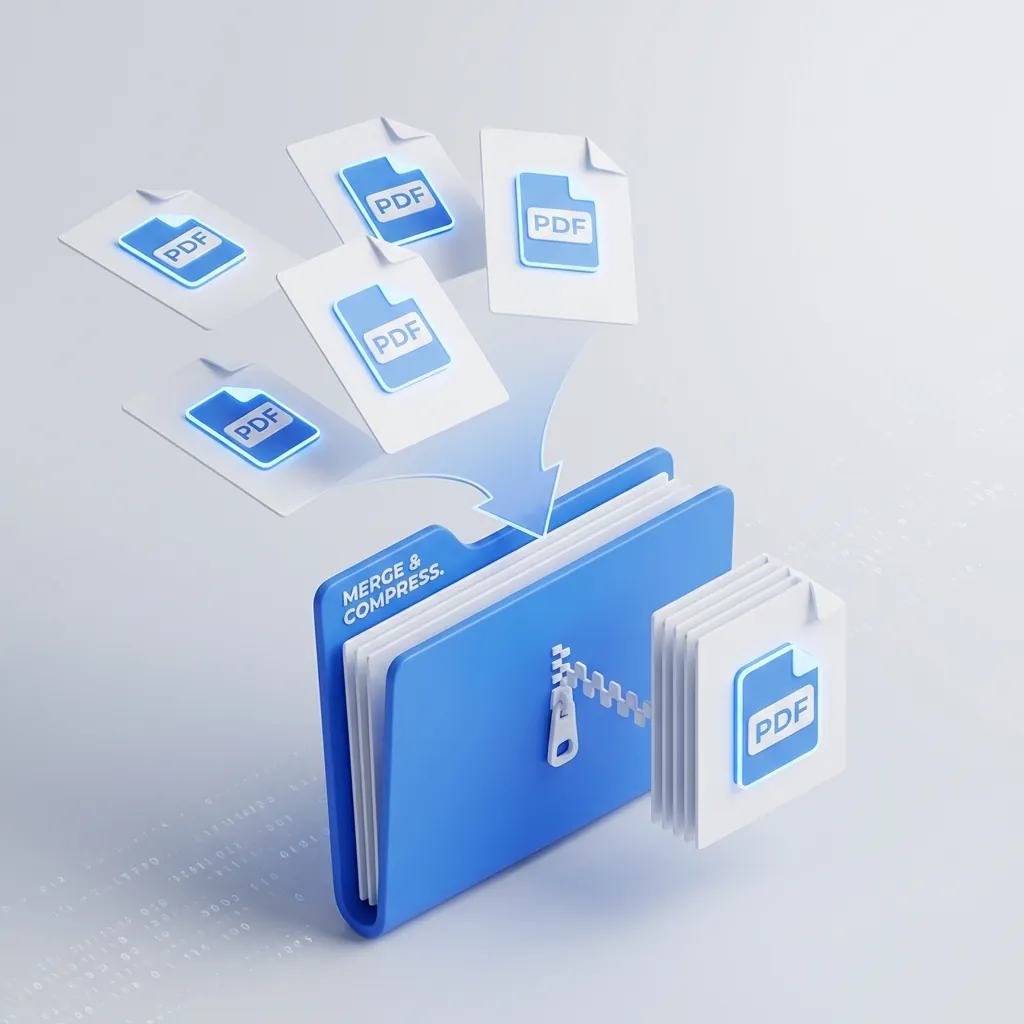
How to Merge and Compress PDFs for Free: The Complete Guide
Stop emailing ten separate attachments. Learn the fast, free way to combine and shrink PDFs in your browser without paying for expensive software.

How to Merge PDFs Without Uploading Your Files: A user-focused Guide
A guide to combining PDFs locally in your browser. Core processing runs client-side, no server storage, local processing for core functionality. Best practices for order, size, and quality.

How to Create a Professional Invoice (Free, With Tax Done Right)
What a valid invoice actually needs, how to number invoices for an audit, which VAT or GST rate to charge, and how to produce a real PDF without paying for invoicing software.
Use These Related Tools
View all toolsPDF Merger
Combine multiple PDF files into one. Fast, secure, and free.
AI Background Remover
Automatically remove image backgrounds in seconds. Free, fast, and runs in your browser.
PDF Splitter
Visually remove or extract pages from PDF files. Fast, secure, and runs in your browser.
AI Text Summarizer
Advanced AI-powered text summarization using browser-native machine learning. Unlimited and completely free.
Need a tool for this workflow?
Axonix provides 100+ browser-based tools for practical development, design, file, and productivity tasks.
Explore Our Tools